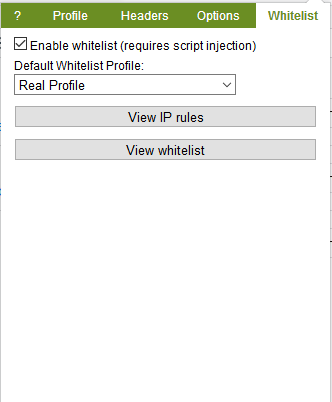
The whitelist enables you to use a specific profile for a whitelisted url. This is very useful for websites like Youtube that use features that non-Chrome browsers don't support.
If you don't want to spend time creating a whitelist profile, select the Real Profile option for your default whitelist profile.
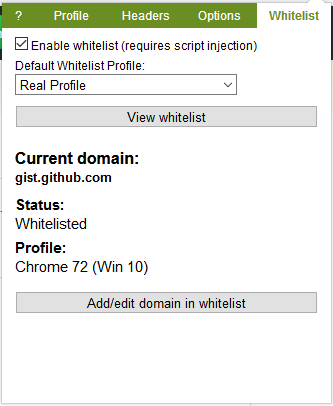
v0.10.0+ introduces a new whitelist editor
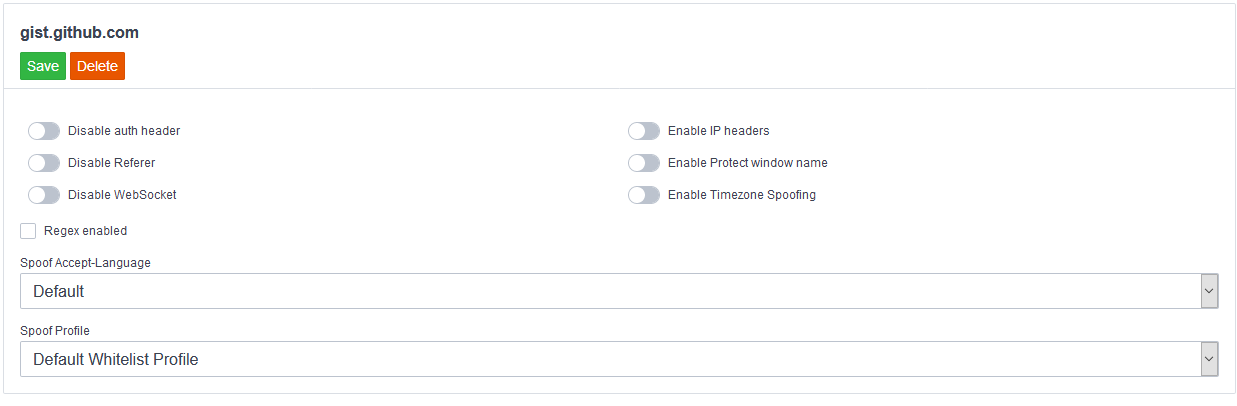
Add a new rule
To add a new rule to the whitelist, navigate to the whitelist section on the popup. You can either view all whitelist rules or create/edit a rule for the current domain.
Enter the domain that you would like to whitelist, for example, youtube.com.
All requests made to urls containing youtube.com will be whitelisted.
Each rule has several options:
- Disable authorization
- Disable referer (overrides your referer settings in the headers tab)
- Disable websocket
- Protect window.name
- Enable IP header spoofing (Via/X-Forwarded-For)
- Specific browser profile
You can also use a specific accept-language for a website. In order to use this feature Spoof Accept Language must be enabled as well.
Using a specific browser profile will spoof the user agent and related browser properties (screen resolution, headers, navigator properties) for that profile.
Regular Expressions
Although it is possible to use regex, it's not recommended if you have a lot of rules.
To improve performance, a domain pattern is required. The regular expression will only be evaluated if the url matches the domain you specified for that rule.
For example:
Domain: wikimedia.org
Regexp: .*?.(.jpg|jpeg)
The above rule will work for all urls that contain wikimedia.org that match the regular expression (is a url to a jpg image).
Recommended sites to add to the whitelist
Some popular websites may break while using Chameleon. I strongly recommend using your real whitelist profile with these rules to have a pleasant browsing experience.
youtube.com
netflix.com
IP Rules
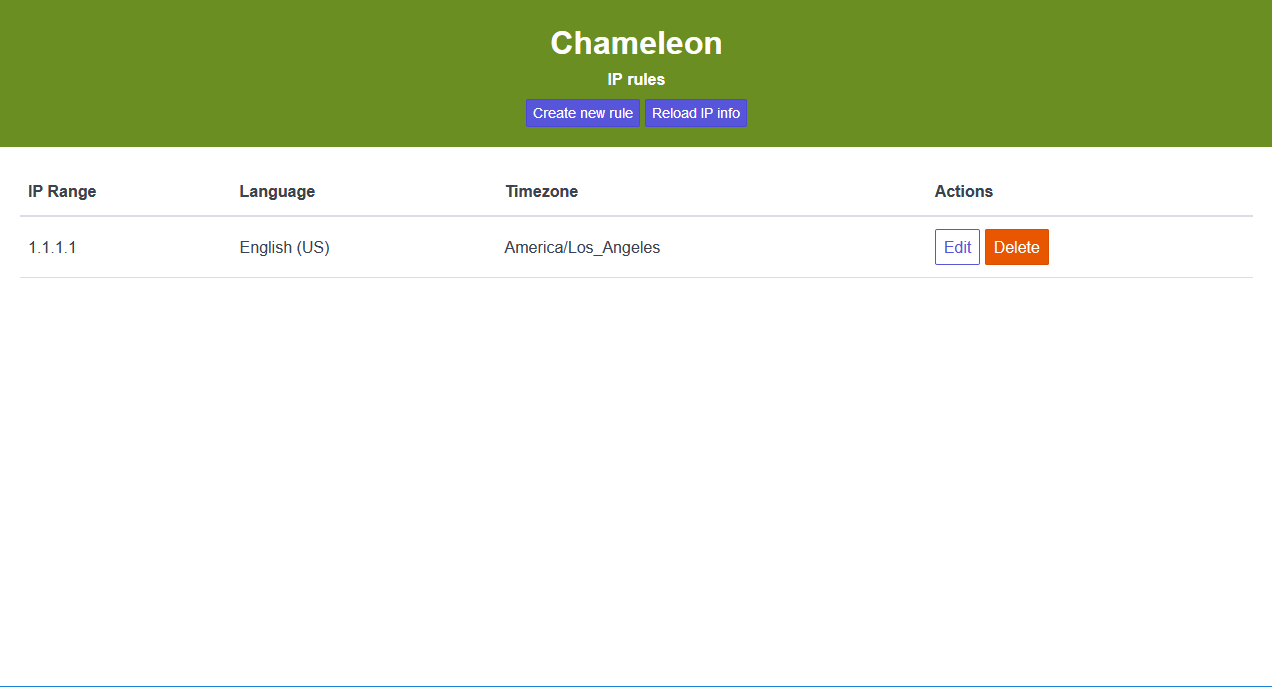
v0.12.3 introduced support for multiple IP ranges per rule. Use a comma separated list of IPs/IP ranges.
The IP rules page can be used to manage IP rules. When you select IP as the option for timezone or accept-language spoofing, rules set here allow you to select a specific value for an IP/IP range. A detailed explanation can be found here.
After you've added rules, make sure to click the Reload IP info button to update your spoofed profile. This is only needed after adding/editing rules without restarting Firefox.